

Order shows only the bundle product
Overview
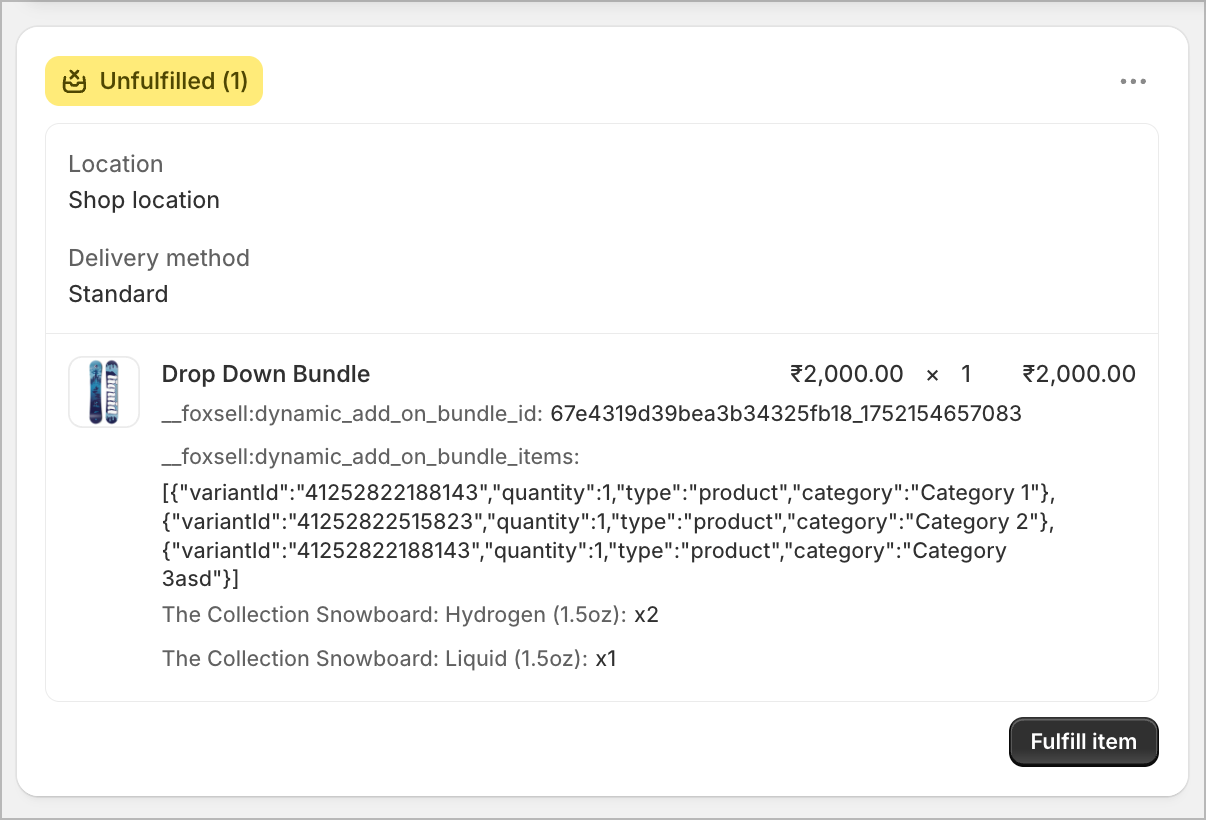
In a normal FoxSell bundle checkout, the order carries details that identify the bundle’s component items. If those details are missing or altered, Shopify may show only the bundle product on the order instead of the individual products inside the bundle.
What this looks like in an order
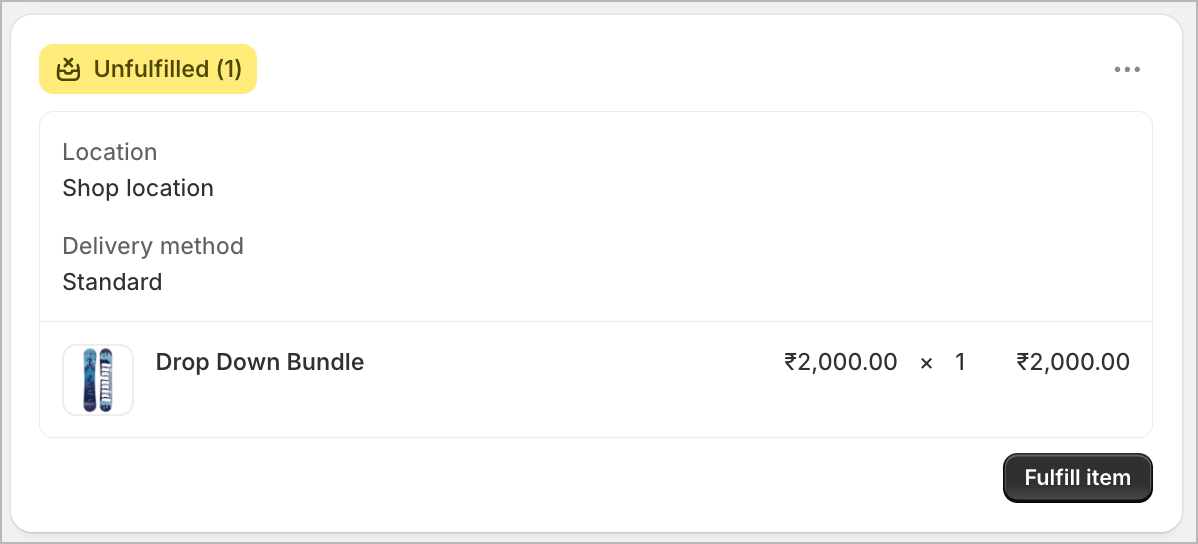
You may see a single bundle line item (for example, Drop Down Bundle) with no bundle component details attached.
Common reasons
1) Quick Add to Cart or Buy Again flows
If a customer adds the bundle using shortcut flows like Quick Add or Buy Again (from their account/order history), the bundle can be added without the bundle component tracking that FoxSell typically attaches. When that happens, the order may not include the bundle component details, so Shopify only shows the bundle line item.
2) Cart was modified (manually or by another script/app)
If the cart/add-to-cart request is modified (for example: custom scripts, third-party apps, or manual tampering), the order can end up with unexpected or invalid bundle details. This can prevent FoxSell from properly tracking the components—or create unusual line item details.
Prevent this with FoxSell Bundle Validation
Enable FoxSell Bundle Validation in your Shopify Checkout rules. This prevents customers from completing checkout when the bundle is missing valid component details.
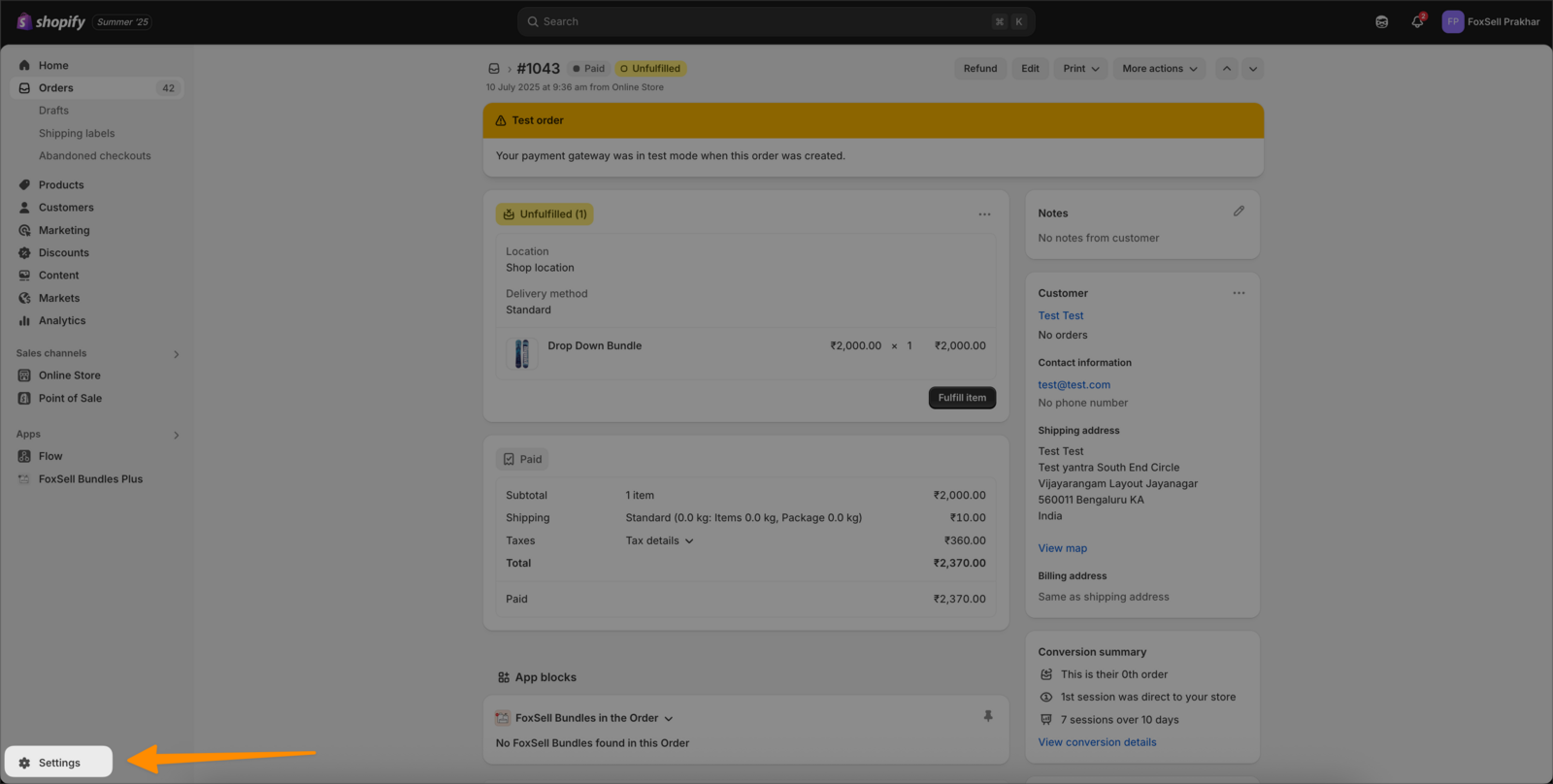
In Shopify admin, click Settings.
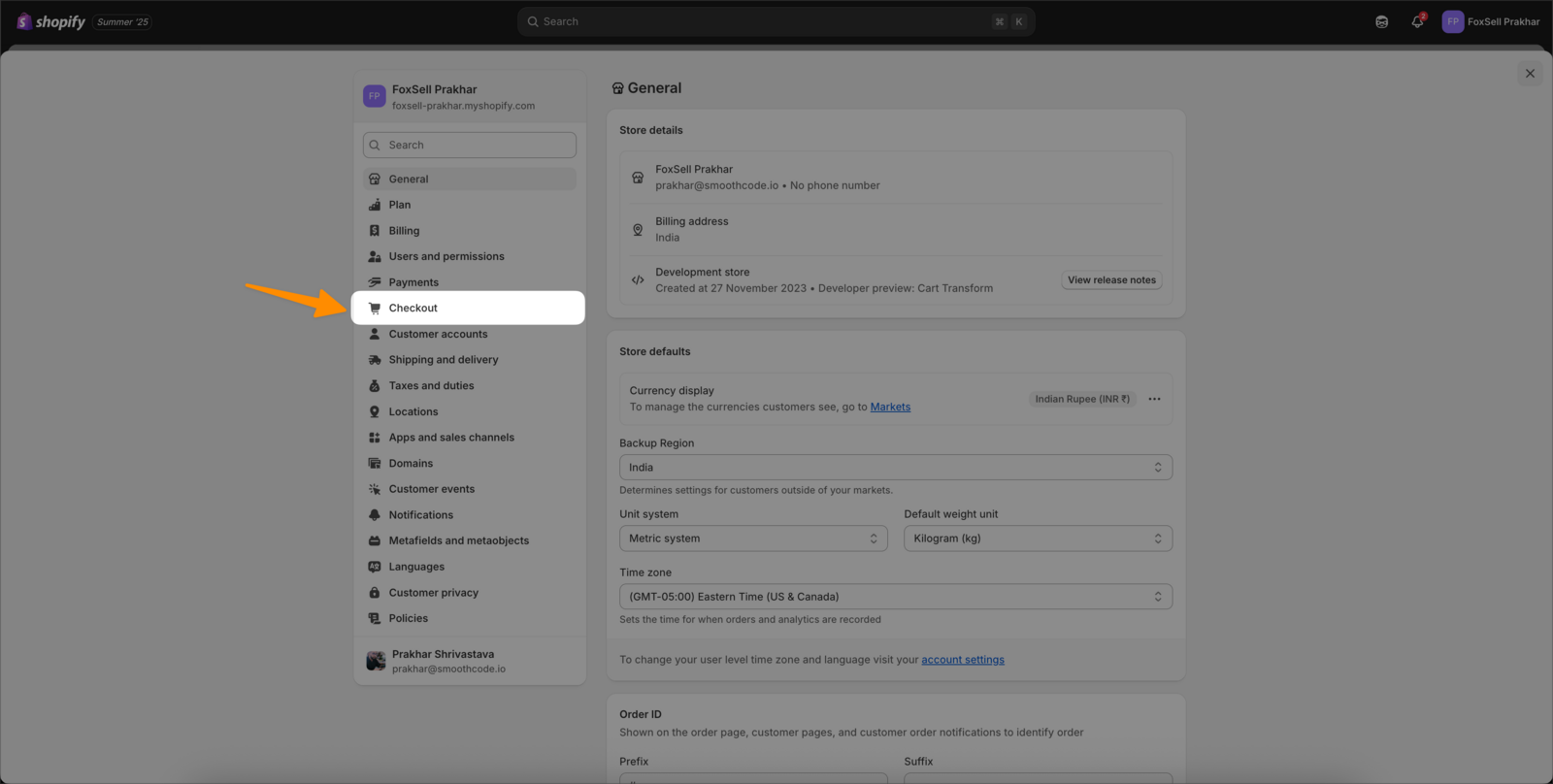
Select Checkout in the left sidebar.
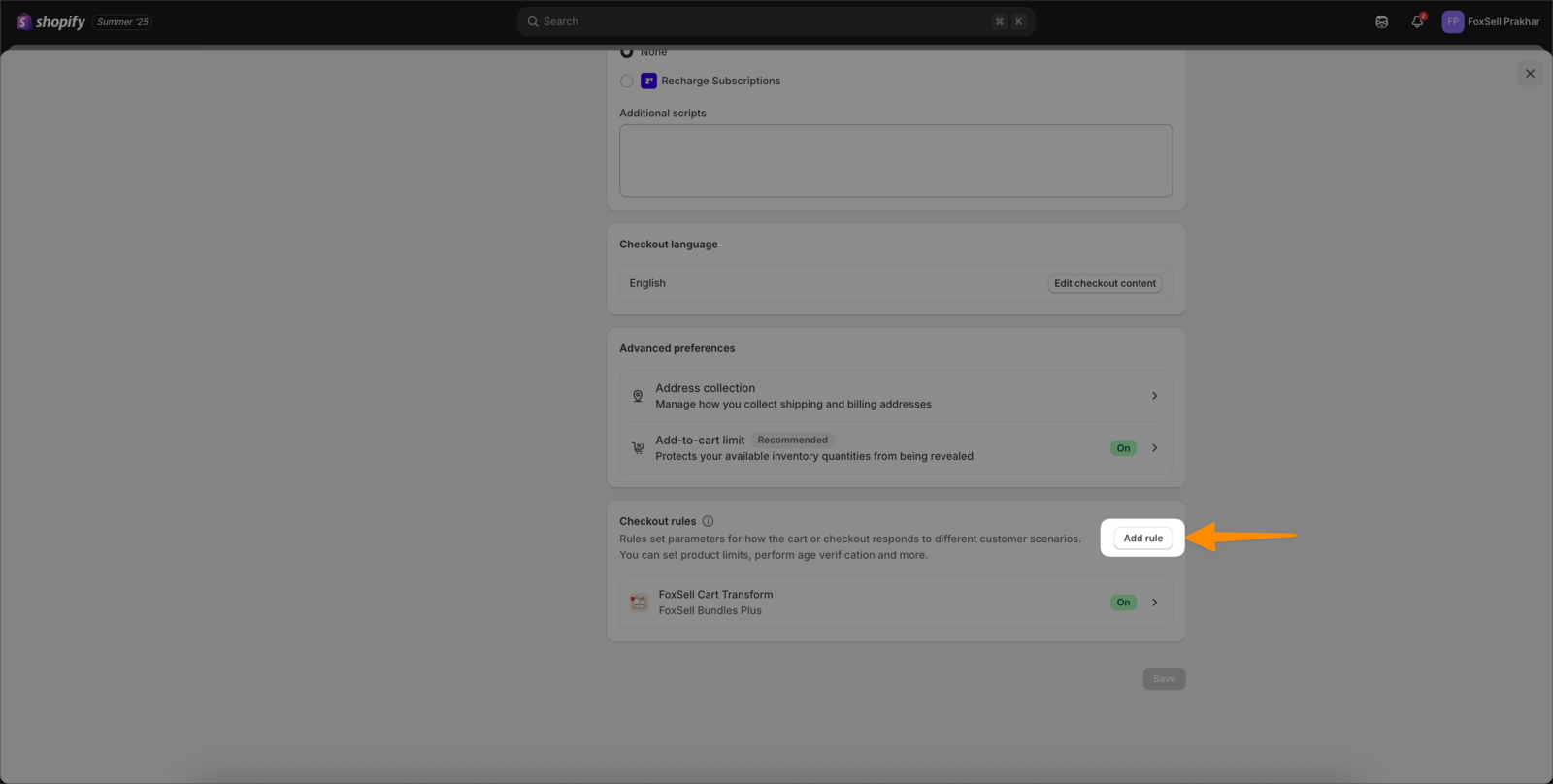
Scroll to Checkout rules and click Add rule.
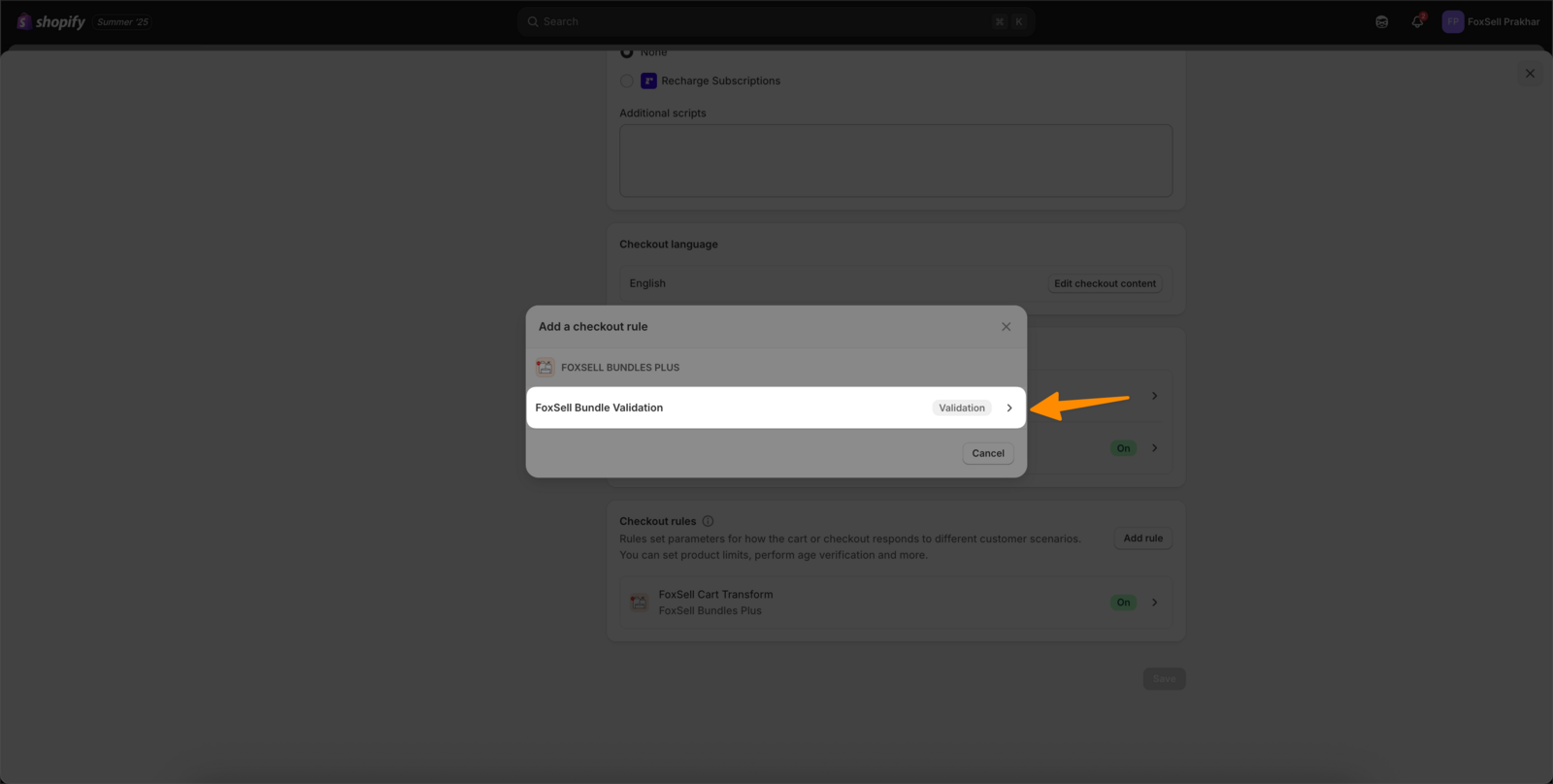
Choose FoxSell Bundle Validation.
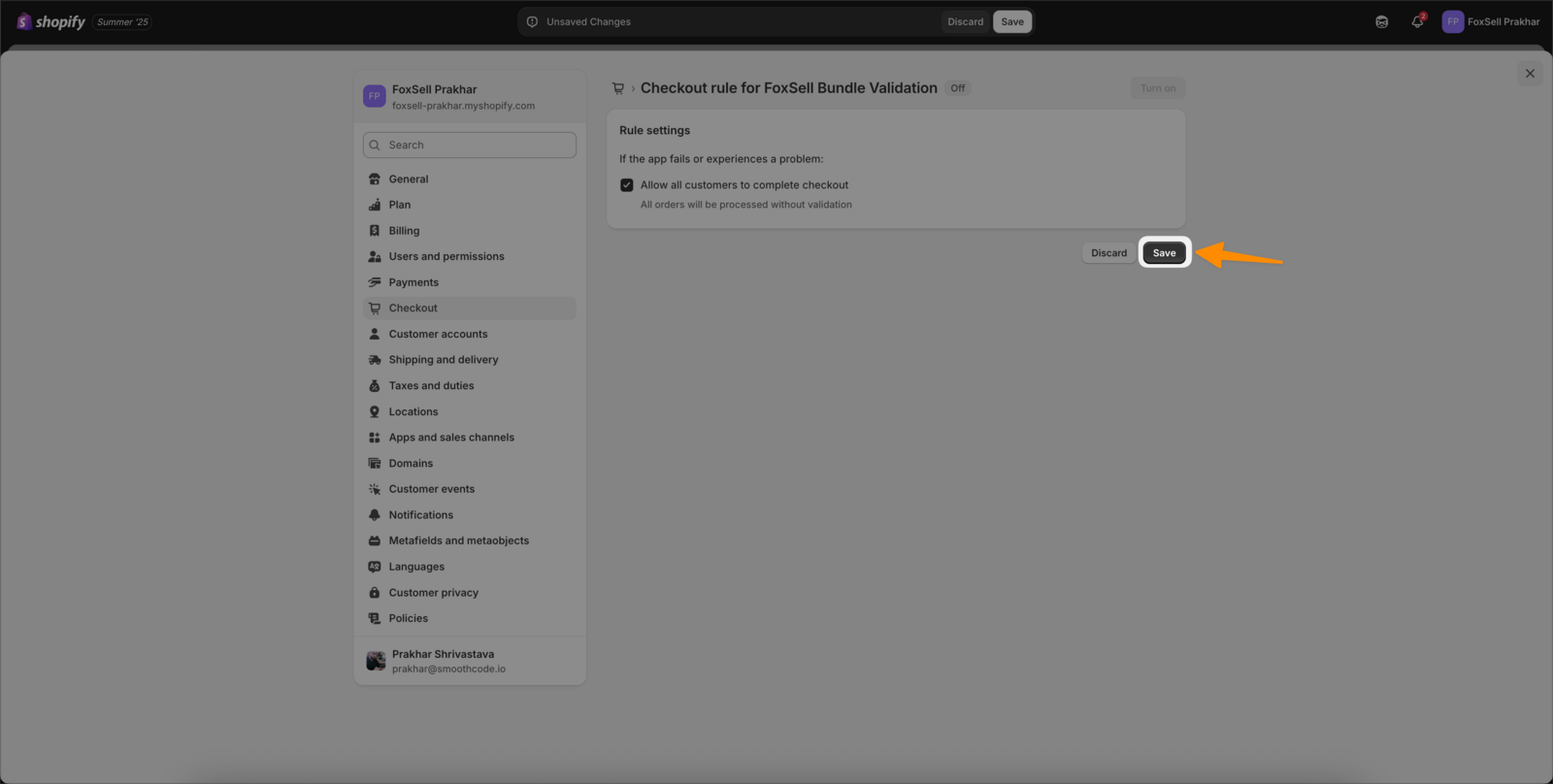
Click Save to apply the rule configuration.
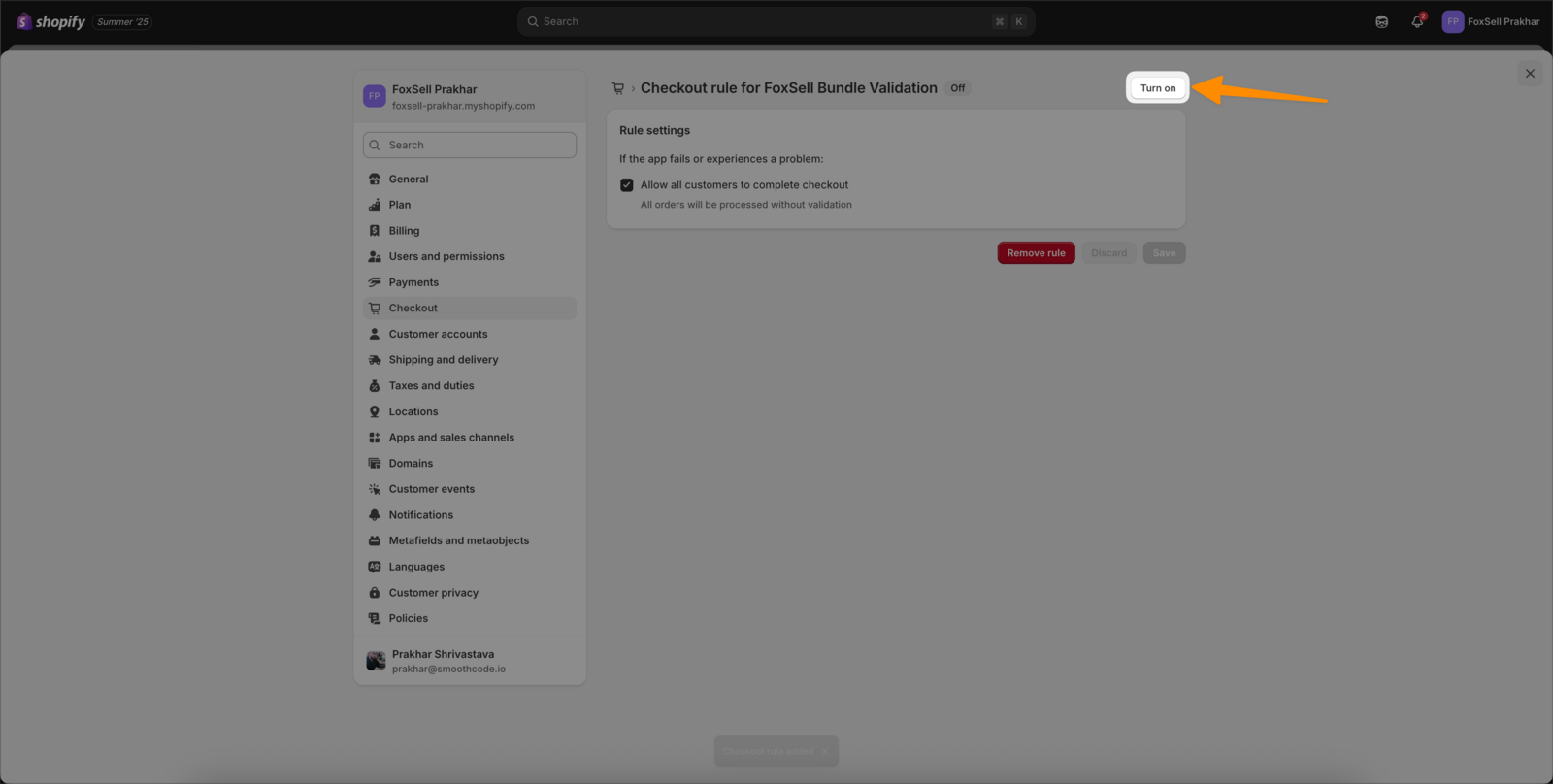
Click Turn on to activate the rule.
Video walkthrough
Need help?
Reach out via the in-app chat or email [email protected] and include an example order number where the bundle components are missing.