

Tag Mix & Match orders
You can automatically tag orders that contain FoxSell Mix and Match bundle items using a Shopify Flow template. This makes it easy to identify, filter, and manage Mix and Match orders in your Shopify admin.
Prerequisites
- FoxSell installed and at least one Mix and Match bundle published
- Shopify Flow app installed
- A Shopify staff account with permission to create and edit workflows in Flow
Set up the Shopify Flow template
In your Shopify admin, install the Shopify Flow app from the Shopify App Store if it isn’t already installed.
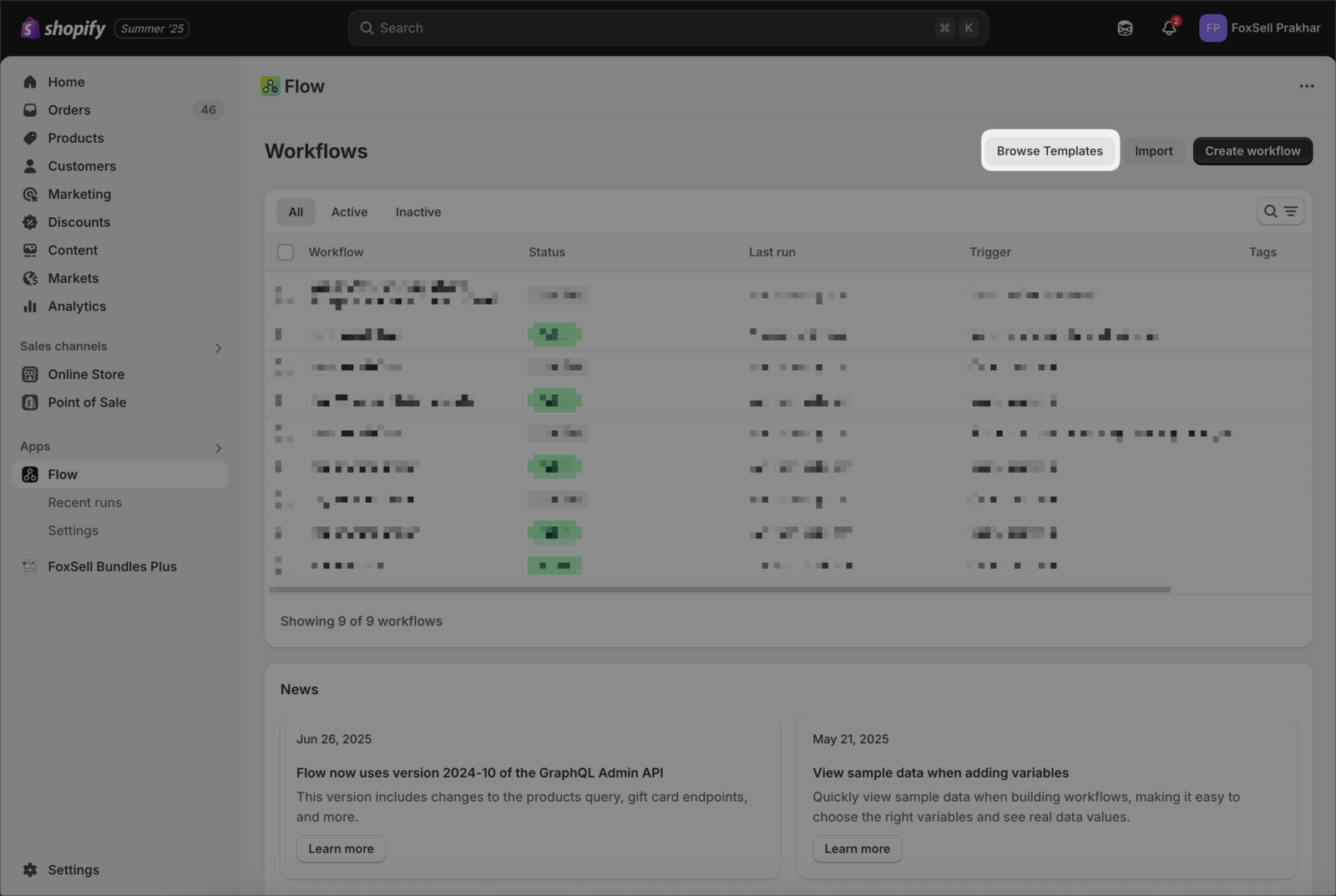
From your Shopify admin, open Flow. On the Workflows screen, select Browse Templates.
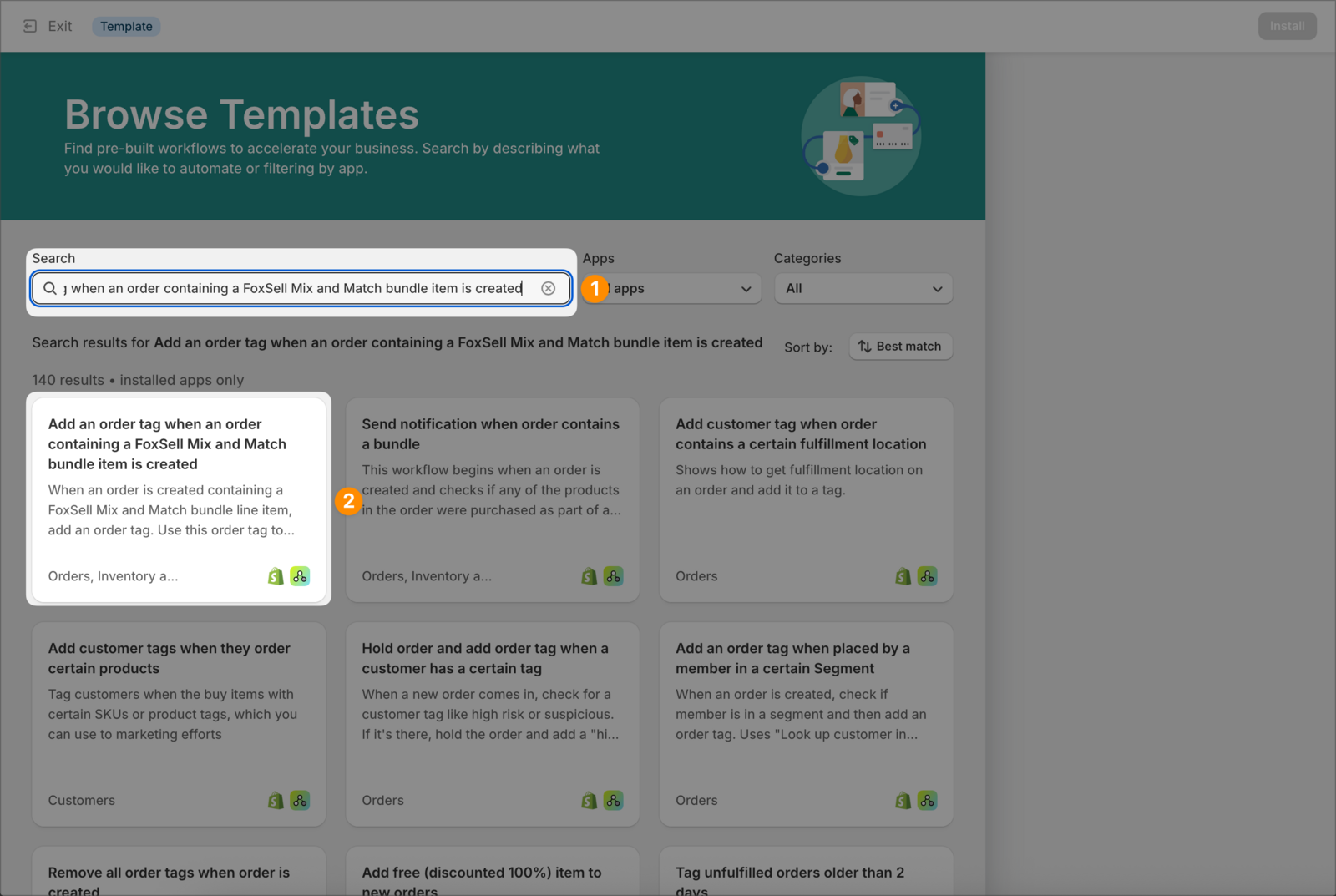
In Browse Templates, search for the template named:
Add an order tag when an order containing a FoxSell Mix and Match bundle item is created
Click the template card to open it.
On the template page, click Install.
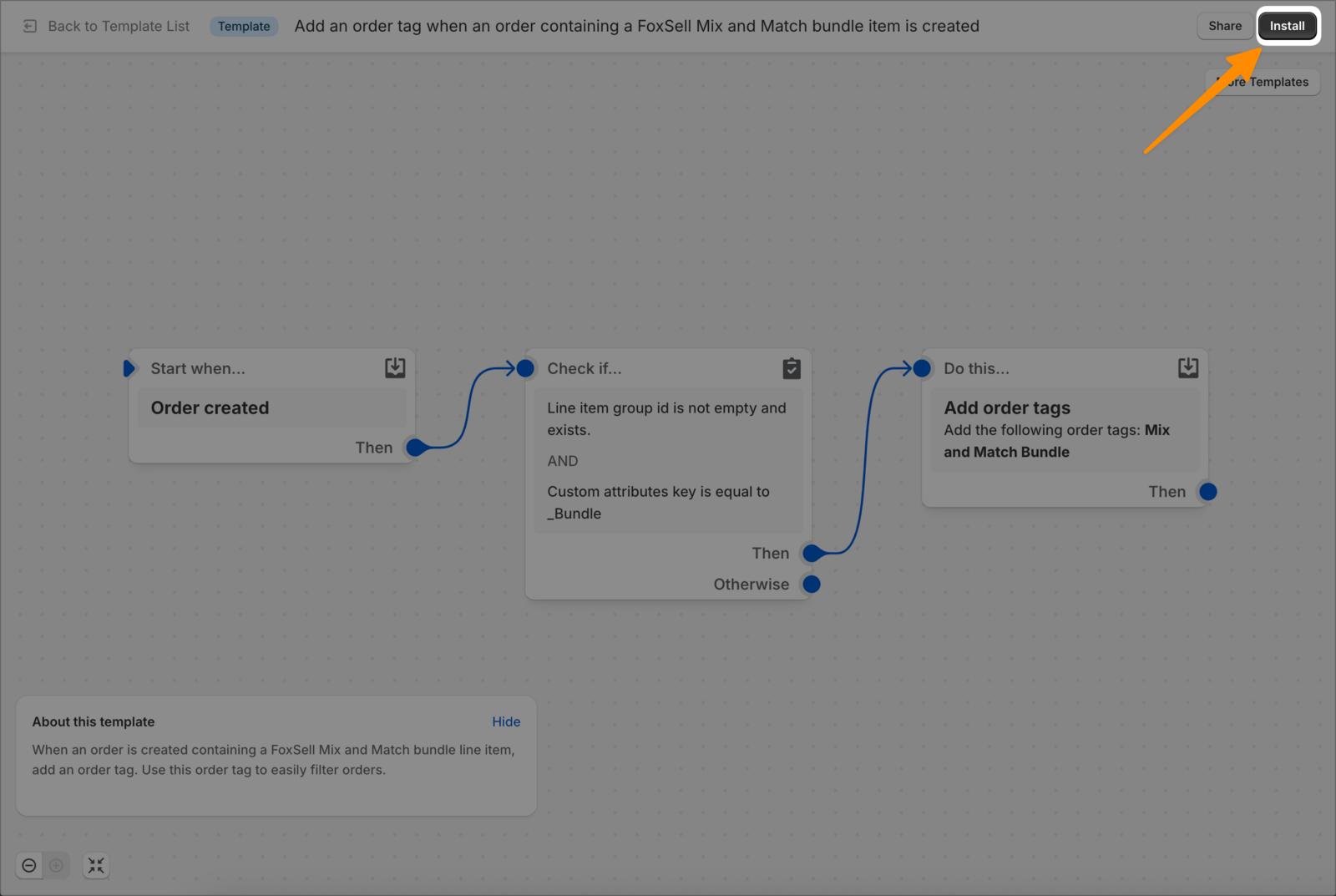
The template’s action is Add order tags and it applies the tag:
Mix and Match Bundle
If you want a different tag, click the Add order tags step and edit the value in the Tags field.
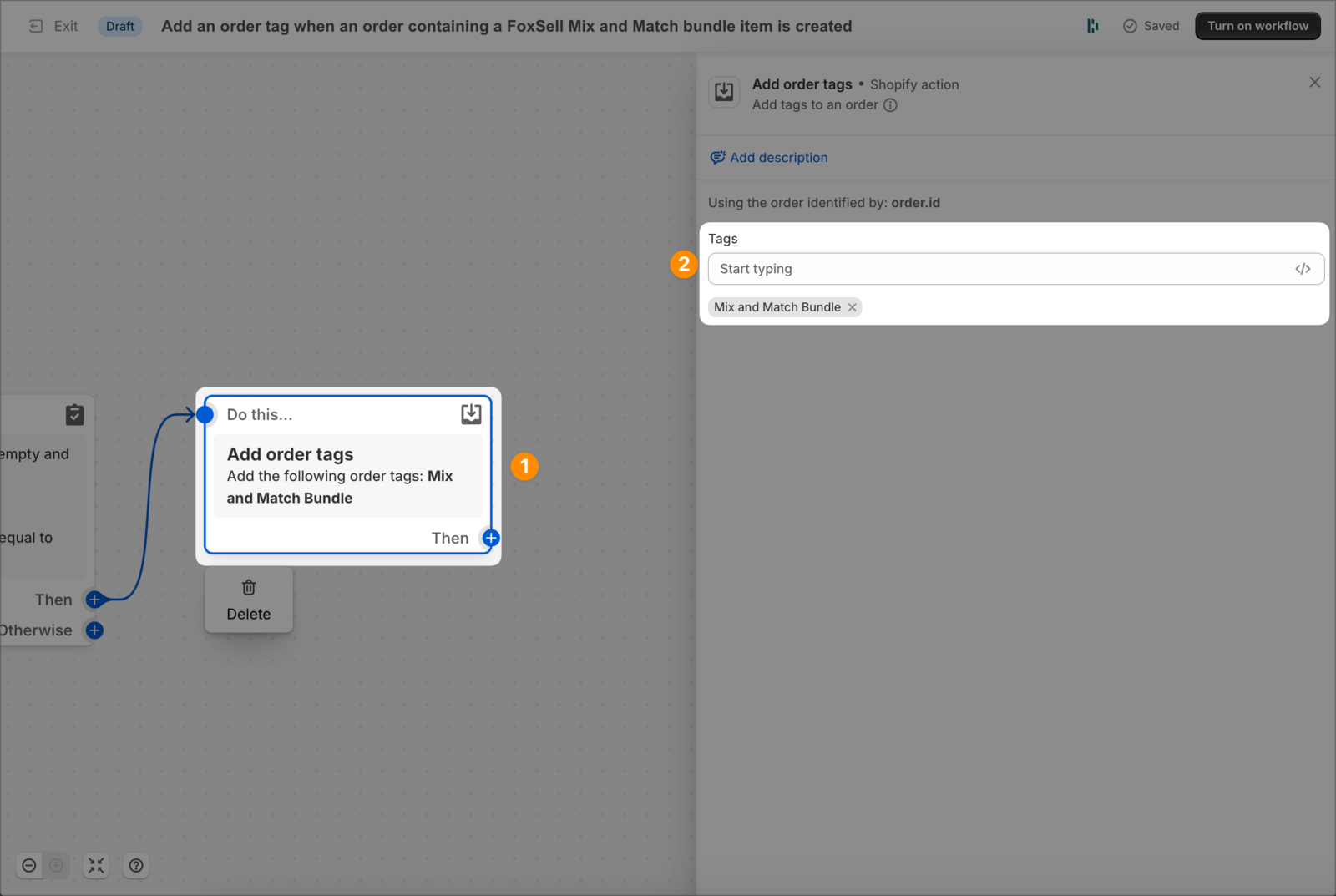
foxsell-mnm) so your team can filter orders quickly and build additional automations later.Click Turn on workflow in the top-right to activate it.
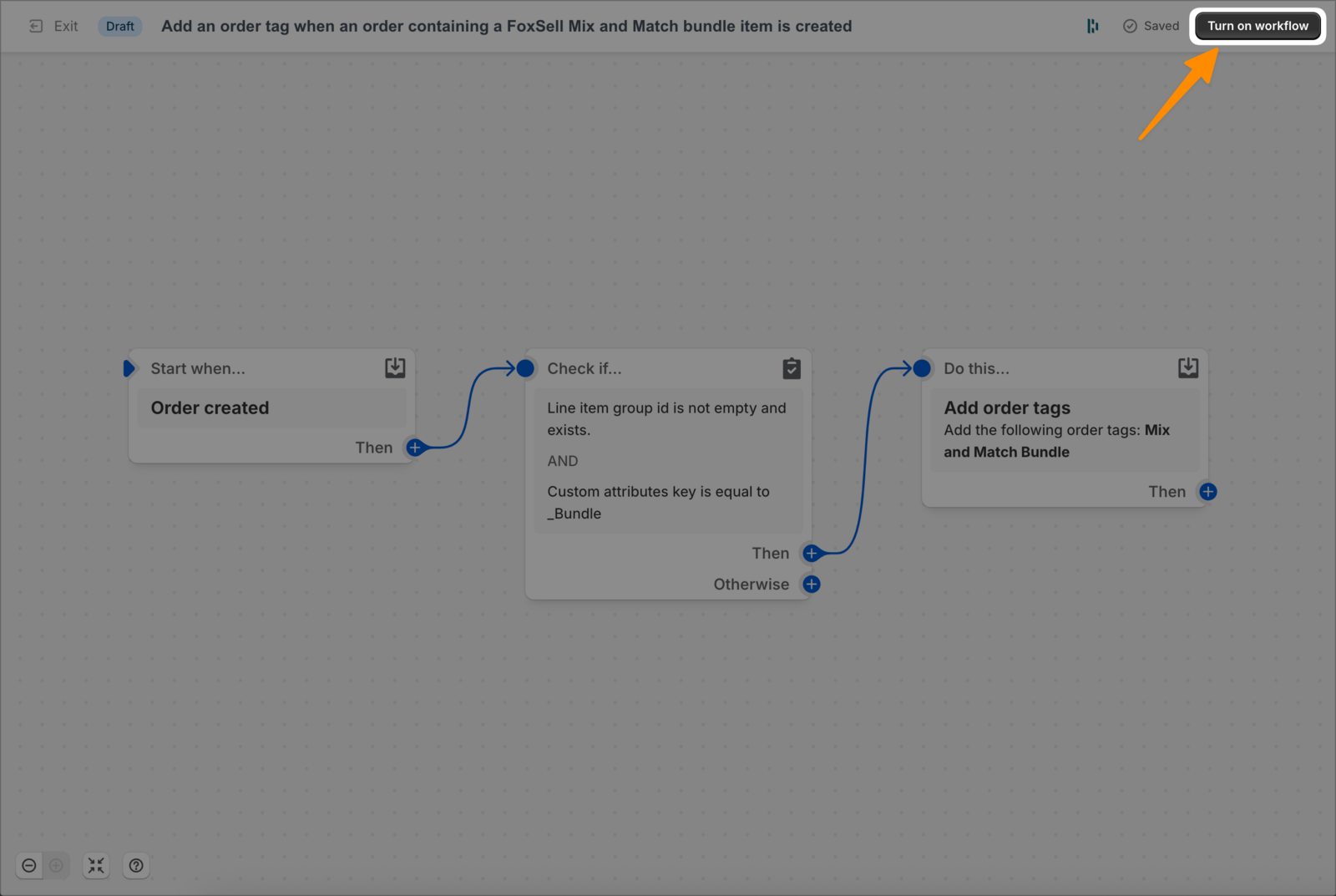
What the workflow does
- Trigger:
Order created - Condition: Checks the order’s line items to identify a FoxSell Mix and Match bundle (the template checks for a line item group and a custom attribute key of
_Bundle). - Action:
Add order tags→ addsMix and Match Bundle(or your customized tag)
Verify it’s working
- Place a test order that includes a FoxSell Mix and Match bundle.
- In Shopify admin, open Orders and open the new order.
- Confirm the order shows the tag (for example,
Mix and Match Bundle). - To find these orders later, use the Orders search filter for that tag.
Need help?
Contact [email protected] or use the live chat in the FoxSell app.