

Add Mix & Match bundles
Mix and Match (Build Your Own Bundle) lets customers build a bundle by selecting items from one or more categories (and optionally add add-ons like free gifts). Setup has two parts:
- Add the “Mix and Match Add Ons” app section to a dedicated product template in your Shopify theme.
- Create the bundle in FoxSell Bundles Plus, then publish it and assign the template.
Add a bundle product template to your theme
If you already have a dedicated product template with the Mix and Match Add Ons section added, skip to Create a Mix and Match bundle in the app.
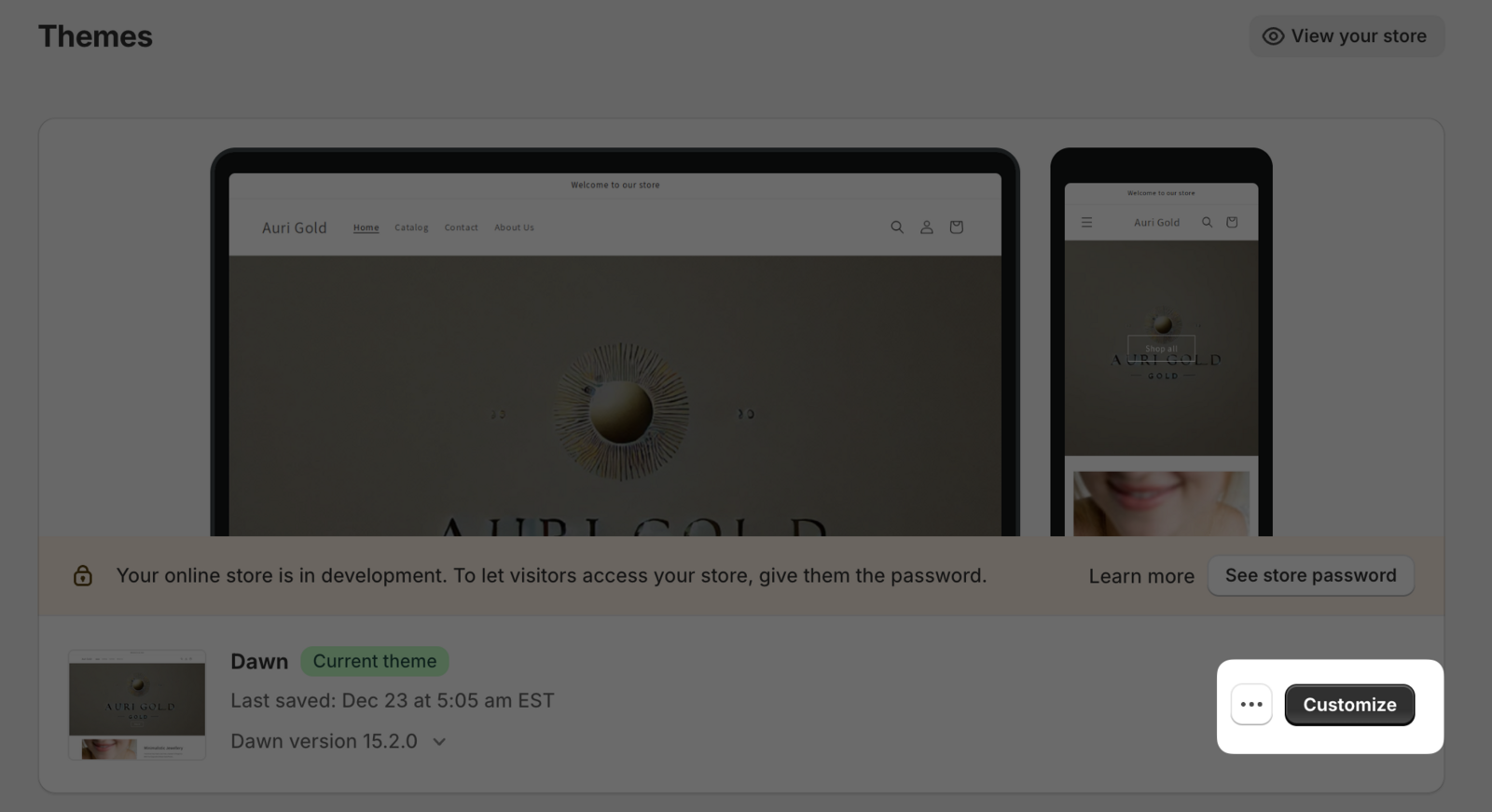
In Shopify admin, go to Online Store → Themes and click Customize on your current theme.
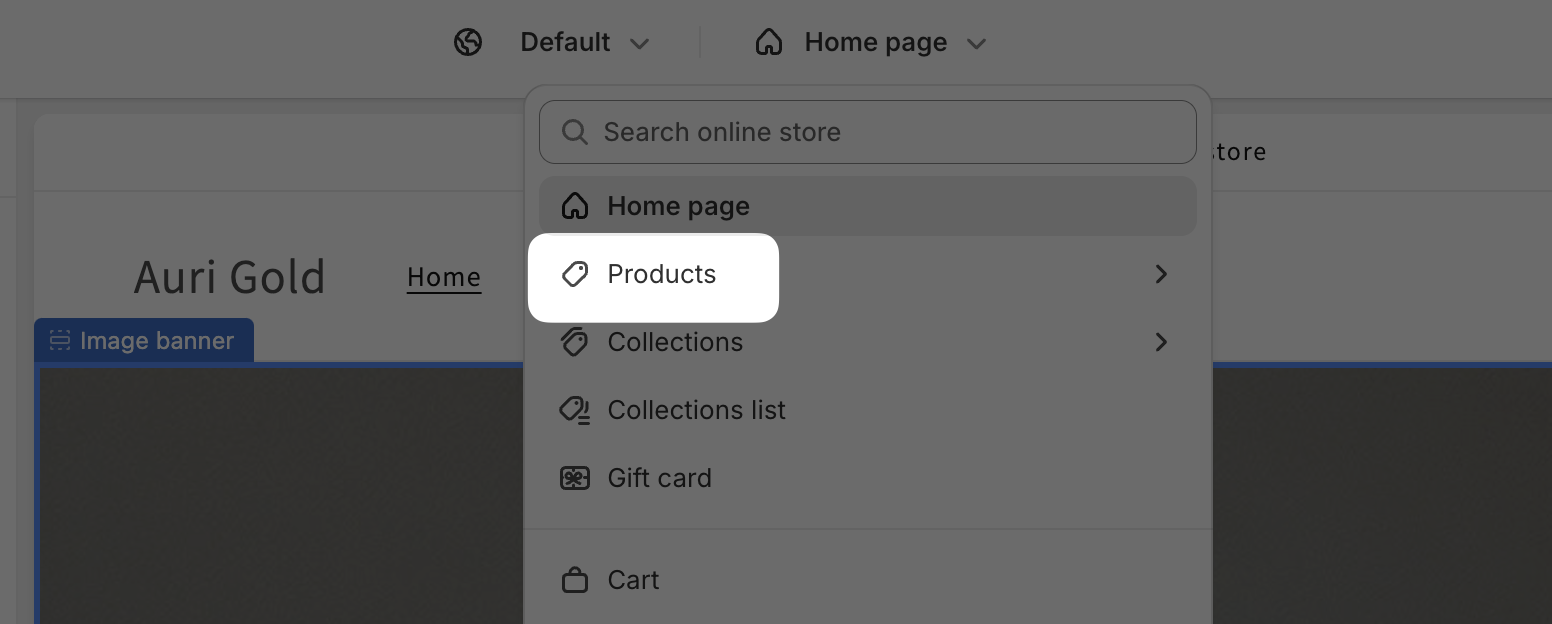
Use the page selector (top bar) and choose Products.
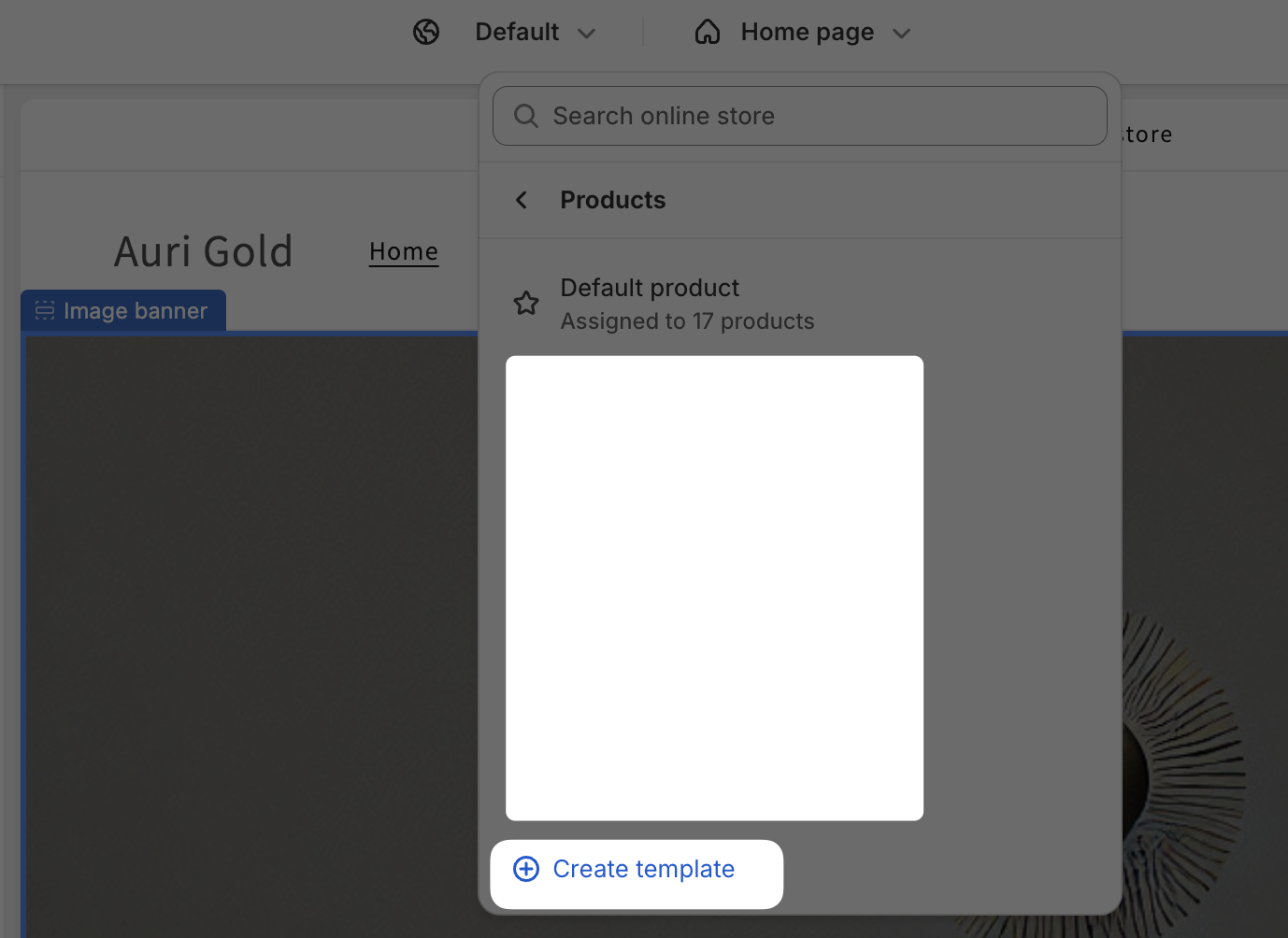
Click Create template, then name it (example: Build your own bundle).
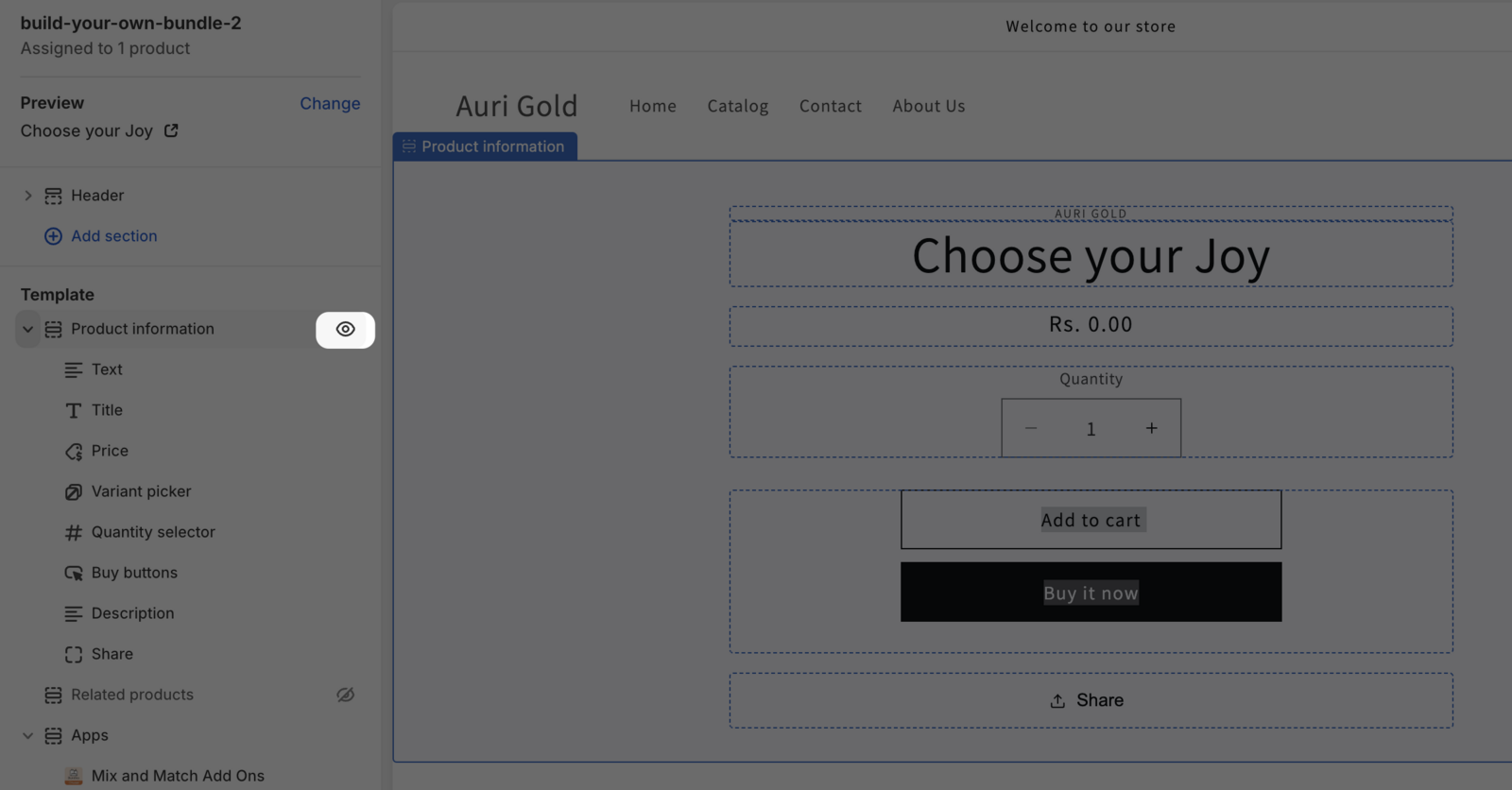
For a cleaner bundle page, hide sections like Product information if you don’t want standard product details displayed.
Click Add section → switch to the Apps tab → select Mix and Match Add Ons (FoxSell Bundles Plus).
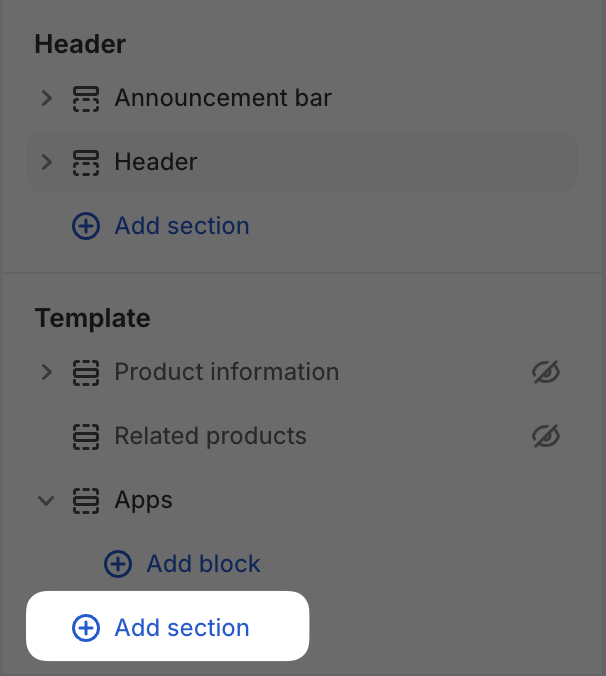
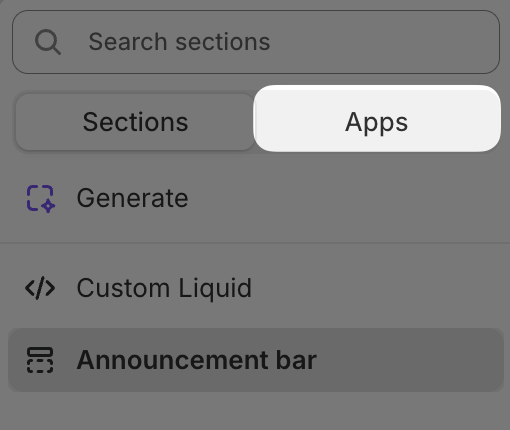
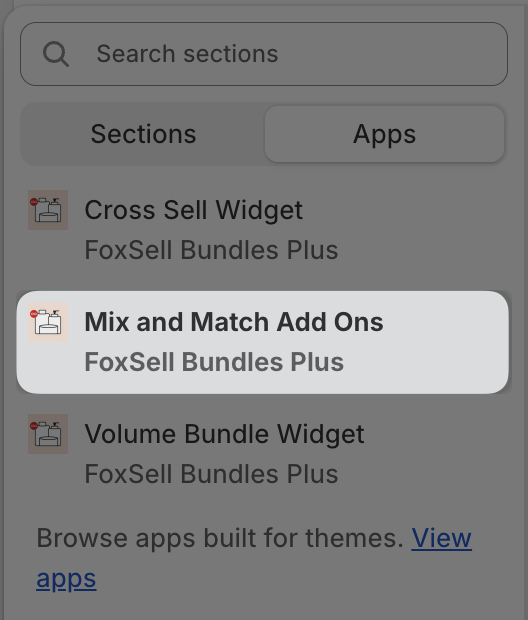
Click Save in the theme editor.

Create a Mix and Match bundle in the app
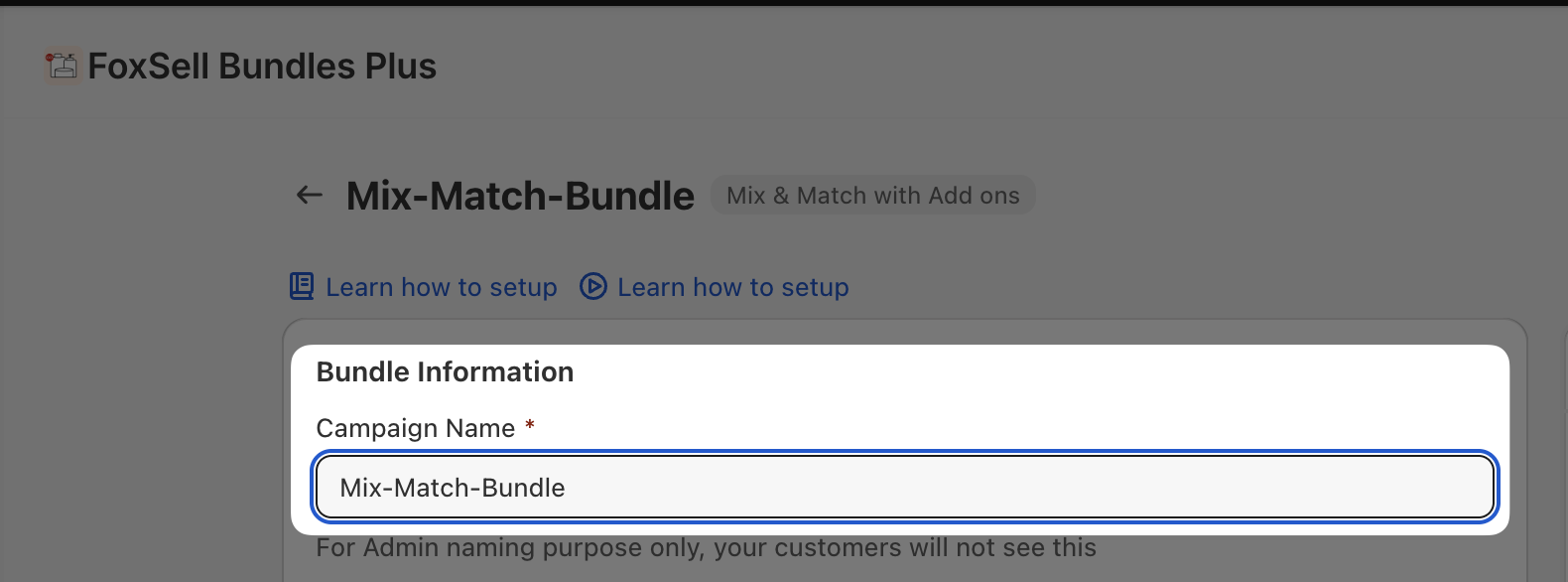
In FoxSell Bundles Plus, open the Mix & Match bundle screen (shown as Mix & Match with Add ons).
Under Bundle Information, fill in Campaign Name. (This is for admin naming; customers won’t see it.)
Turn on Enable quantity as an option if you want multiple bundle sizes (for example, “Box of 4”).
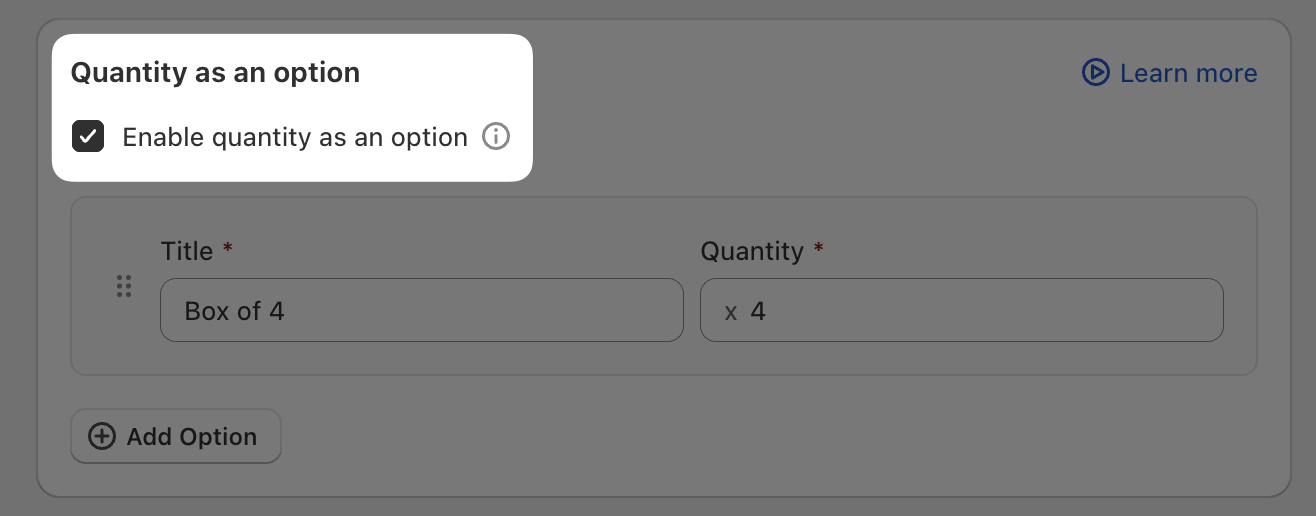
Box of 4) and its Quantity.In Pricing, select one:
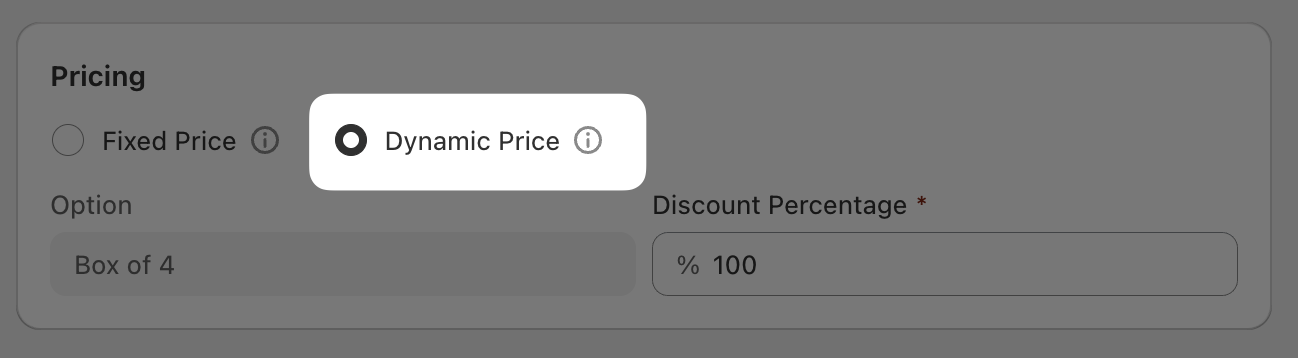
- Fixed Price: the bundle always costs a set amount.
- Dynamic Price: the bundle price is calculated from the selected products (and can use a Discount Percentage).
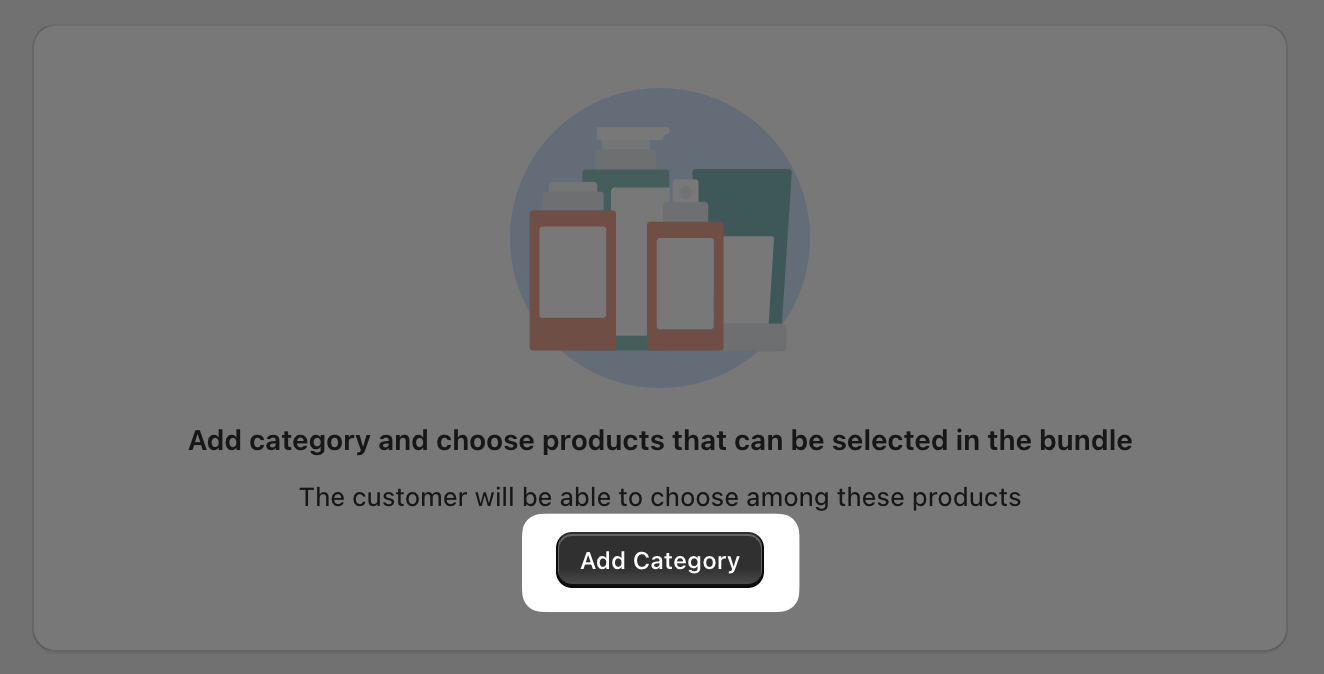
Click Add Category. Give the category a name, then click Create category and select products.
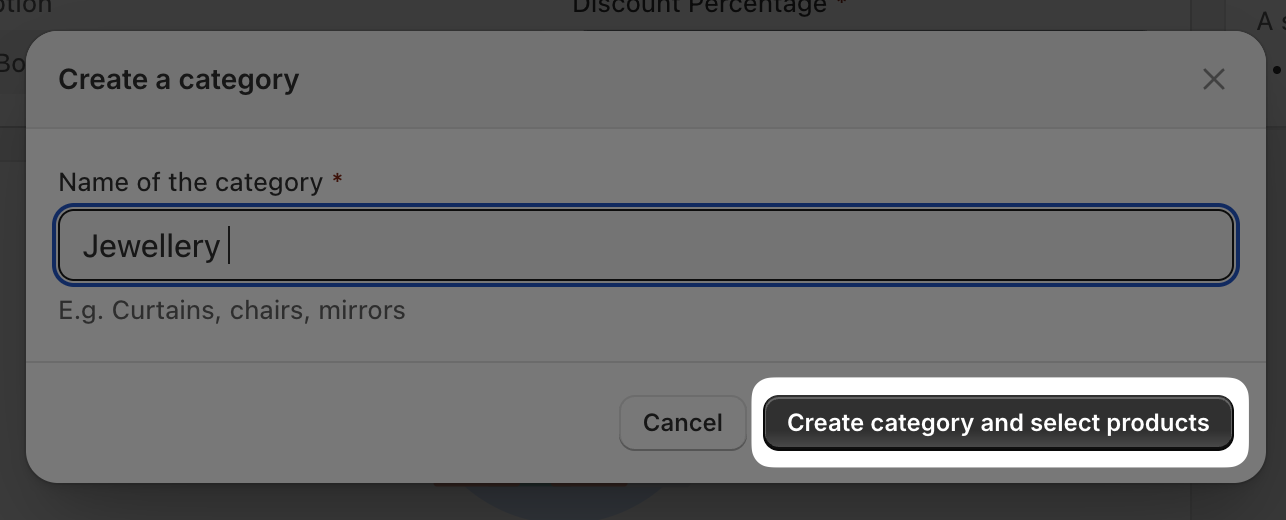
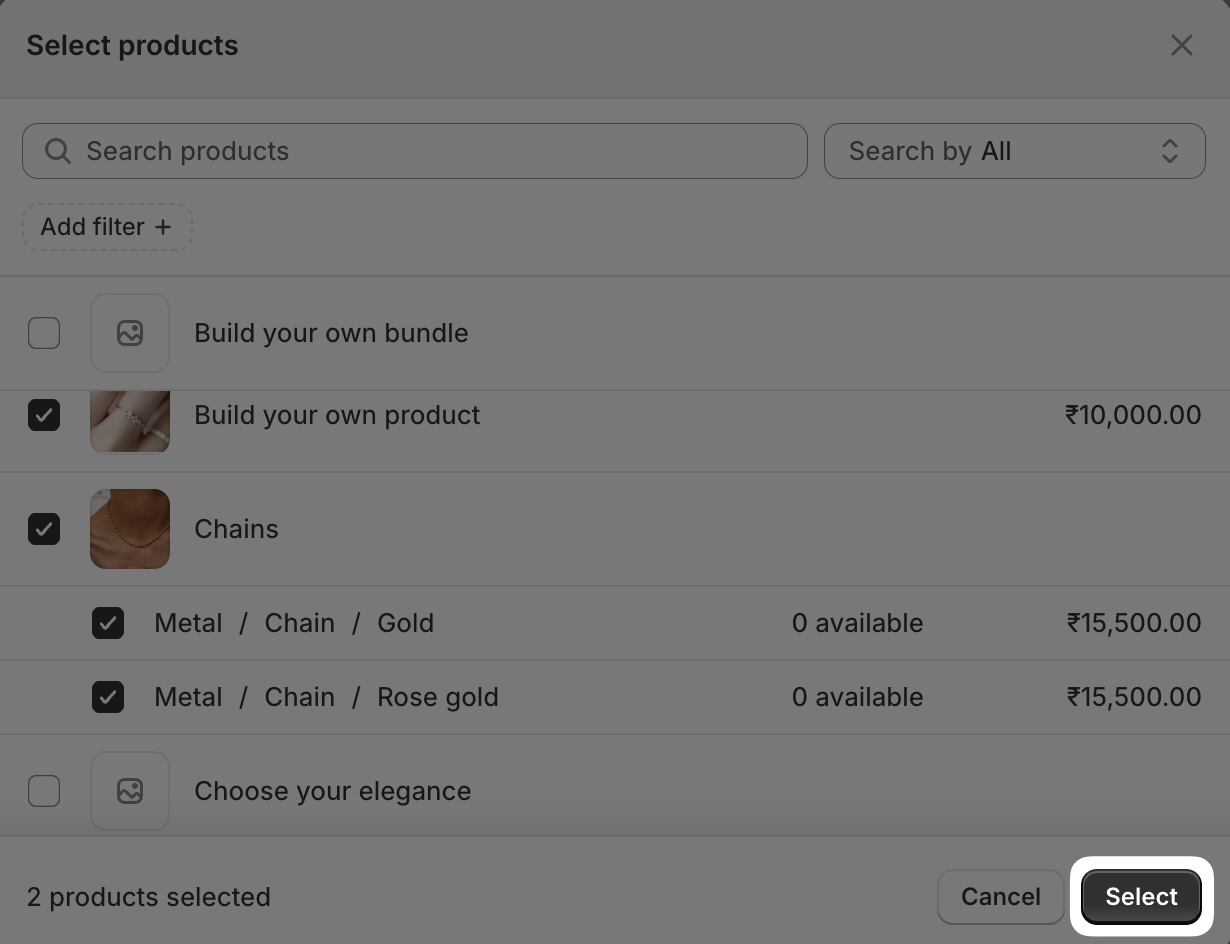
In Select products, choose the products customers can pick from, then click Select.
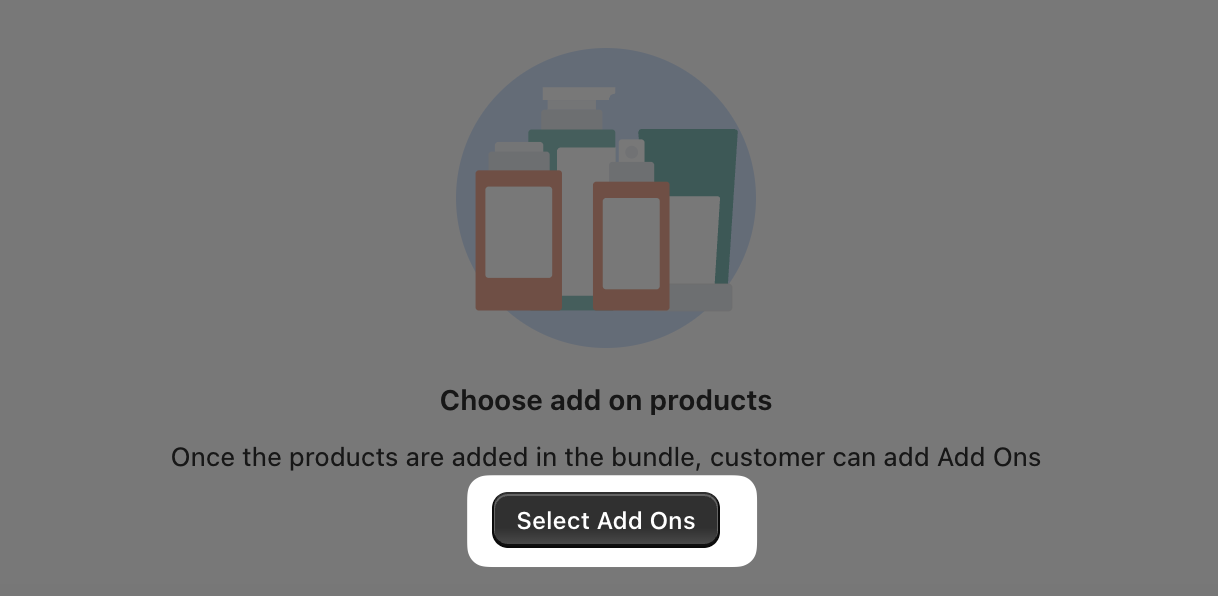
If you want customers to add optional extras, open Add Ons and click Select Add Ons.
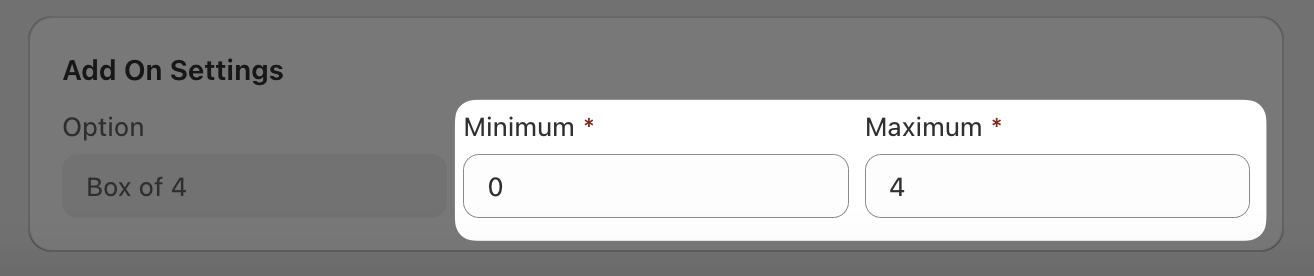
Select your add-on products, then configure Add On Settings like Minimum and Maximum allowed.
Click Save to create/update the bundle.

Publish the bundle in Shopify
From the bundle screen, click View Bundle in Shopify Admin.

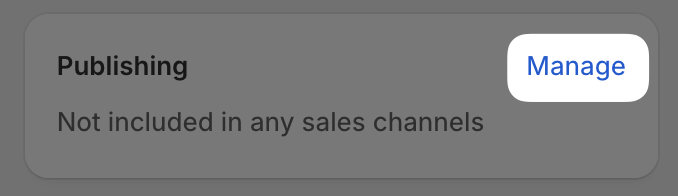
On the product page in Shopify, in Publishing, click Manage and ensure Online Store is included.
In Shopify product settings, set Theme template to the template you created (example: build-your-own-bundle).
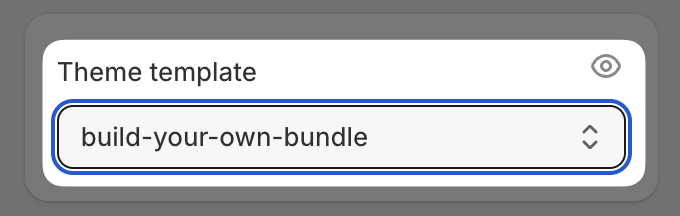
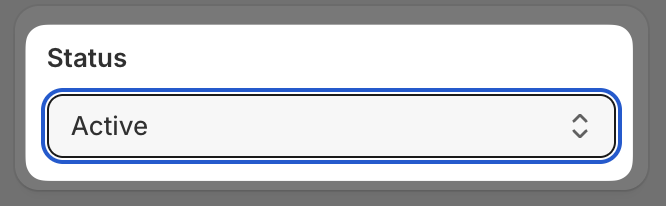
Set Status to Active, then click Save.
Click Preview to confirm the Mix and Match bundle loads on the product page.

Need help?
Contact the team via in-app chat or email [email protected].